Find my kits here

Tasha's Playground Fan Page

Find me on Facebook

My Personal CT

Showing posts with label FTU tut. Show all posts
Showing posts with label FTU tut. Show all posts
Friday, February 8, 2013
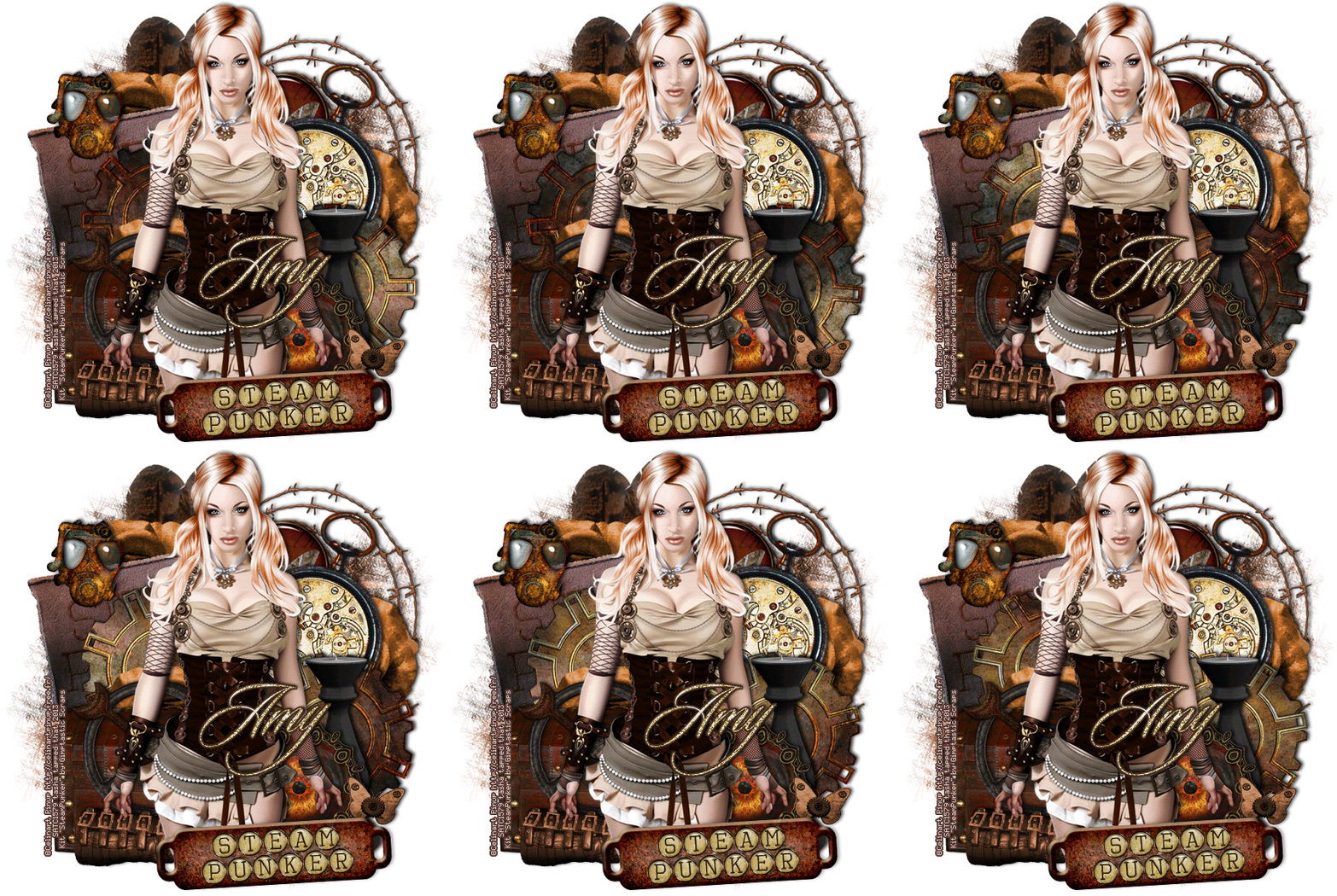
*click to view full size*
Supplies:
Kit- Steam Punker by Gimptastic Scraps. Grab it for free here.
Tube- Kato Steampunk by Celine Pinup
Mask of choice
Font- Sloop Script
Photoshop CS5
I'm on a Mac, so when I use Command you may need to use CTRL
Here we go :)
Command+N to open a new canvas 650x650, white background.
There is really no way to describe how I arranged my elements..I just play around
until it clicks lol. I grouped some elements together (select the ones you want, then Command+G to create a group) to make it easier to animate. There are lots of fun things in this kit, I used:
*from bottom to top*
Group 1:
wire
feather
rose
leather patch
flair
watch
cog 2
rose
trunk
cog 2
Group 2:
candle holder
cog 1
cuff
eye
butterfly
tag
mask
WA
Add your tube above the butterfly layer. I like a soft glow on my tubes. To do this-
Command+J to duplicate. On top tube Filter>Blur>Gaussian Blur 2px.
Blend Mode Soft Light, Opacity 45%. Play with both those settings to suit your tube and taste :)
Click layer styles and add drop shadows to elements and bottom tube copy.
Add name and any text. To the name I added noise (Filter>Noise>Add Noise) and applied a few layer styles:


Now for the mask!! There are a few ways to do this...this is how I like to :)
Open your mask and add paper of choice above it.
With the mask layer highlighted, Select>All, Edit>Copy.
On paper layer, hit Q to activate Quick Mask Mode. If you see red, you're doing it right! Edit>Paste. Hit Q again to turn off Quick Mask Mode. The red should disappear and be marching ants.
Now click the Add Layer Mask button at the bottom of your layer palette box.
Rasterize the layer and drag it over to your tag canvas.
Resize and postion as needed.
Image>Trim>Top Left Pixel Color. This will get rid of any excess space on your tag.
Add your license and copyright info.
If you are not going to animate, close out the white background and save as PNG.
To animate:
Keep your white background there! Otherwise, you'll end up with nasty edges from the drop shadows.
First rename your two cogs that you are going to rotate. I named them both 1 since they will be the first ani frame.
Window>Animation to open the animation window. You will see that your first frame is already there waiting for you..yay!
Duplicate the first frame-

Close out the cog layers and duplicate them. Rename them both 2. On the bottom right one, Free Transform (command+T) 10 degrees to the right.

Do the same with the other cog, except do -10 degrees.
Duplicate the animation frame. Close out the cog layers and duplicate them. Rename them both 3. Rotate them 20 and -20 degrees, respectively.
Repeat these steps until you are done, increasing the degrees by 10 each time..I ended up with 27 layers.
Change the delay time to 0 sec and set to loop forever.
Edit>Save for Web & Devices and save as GIF.
All done :)
Thanks for trying my tut!! If you have any questions or would like to show me your results, feel free to email me at bananas_68@yahoo.com or friend me on Facebook.
Tuesday, January 29, 2013
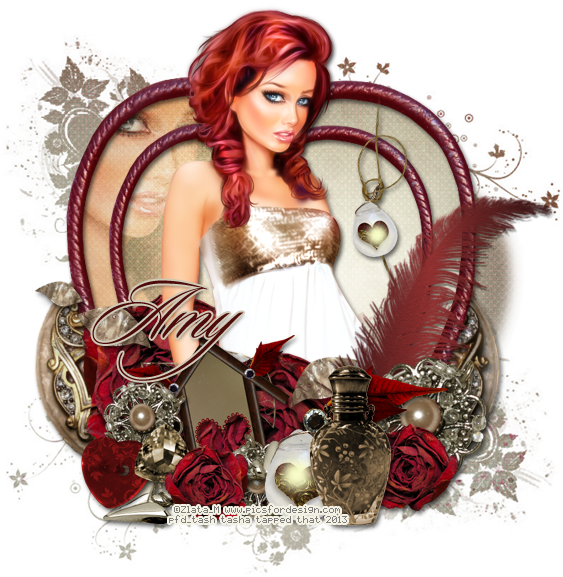
Supplies-
Kit- Forever Love by Gimptastic Scraps. Visit her blog here for info on where you can purchase this great kit
Tube- This tube is by Zlata M and can be purchased from PicsForDesign here. You need a valid license to use this tube.
Mask- KBH_2013_Mask10 from Kaci here
Font- Sloop Script
Photoshop CS5
I'm on a Mac so when I use Command you may need to use Ctrl
Here we go :)
Open a new canvas 700x700
Place frame 6 in center of canvas. Place paper 9 below that.
Click inside both sections of the frame with the magic wand tool.
Select>Modify>Expand by 5. Select>Inverse. Hit delete on paper layer.
Deselect. Double click frame to bring up layer styles and add drop shadow of choice.
Place close up of tube above paper and right-click to create a clipping mask.
Change the blend mode of the tube to Overlay, opacity 64%.
Add your tube to the center of the tag. Command+J to duplicate.
On top copy, Filter>Blur>Gaussian blur 2px. Blend mode Screen, Opacity 50%.
Drop shadow bottom tube only.
Add some elements from the kit to your tag. From bottom to top I used:
compact
deco 3
flower 2
flower 1
leaf scatter
feather
house
flower scatter 1
arrow
deco 4
perfume bottle
heart button
gem 2
Now let's get our mask ready! Open your mask on a new canvas.
Add a new layer above it, and flood fill with color of choice,
or use a paper from kit .
Make sure your mask layer is activated and Command+A to Select All, Command+C to Copy.
Activate the paper layer, hit Q to turn on Quick Mask mode.
Command+V to paste the mask..it should now be tinted red.
Hit Q to turn off Quick Mask mode and there should now be marching ants on your canvas.
Hit the Add Layer Mask button at the bottom of the layer palette (rectangle with the circle in it)
Right click- convert to smart object
Right click- Rasterize layer
Drag completed mask to your tag canvas as the bottom layer
Resize it if needed.
With your Rectangular Marquee Tool (m), draw out a selection around the entire
tag, just slight smaller than the canvas. Image>Crop.
This will get rid of any stray pixels or drop shadows you don't see.
Image>Trim>Top Left Pixel Corner to remove the excess space.
Add your license and copyright info to the tag.
Add name and any other text of choice.
Merge, save as PNG and enjoy :)
Thank you for trying my tut! If you have any questions or would like to show me your results, feel free to email me (bananas_68@yahoo.com) or friend me on facebook (badge on left of blog)!!
Sunday, December 16, 2012
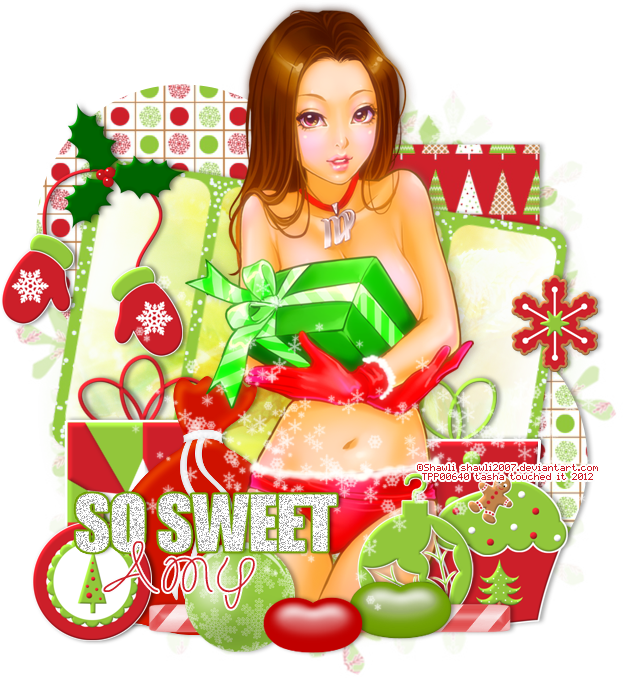
Supplies:
Kit- Ginger Christmas by Gimptastic Scraps. Pick up this yummy kit here.
Tube- I'm using Xmas Virgo by Shawli. You can buy this tube here at TPP with a valid license.
Template- Collab temp by Pixie and Millie here
Mask- DBV Xmas Mask 6 by Vaybs here
Texture- Texture 2 here
Brush- Snow 10 by Dark Yarrow here
Font- The Wizard
Photoshop CS5 or program of choice
I'm on a Mac, so when I use Command you may need to use Ctrl
Here we go :)
Open up your template. Image>Duplicate. Close out original.
Delete layers 1, 2, 3, 9, 10 and credits.
Image>Canvas size and increase to about 750x750 so you have room to work.
Place paper 4 above layer 4. Right click paper and Create Clipping Mask.
Drop shadow the template layer.
If you don't like where you clipped it, simply use your mouse to drag the paper layer around until
you are satisfied with it's placement. No need to release the clipping mask!
Repeat with the remaining layers:
layer 5 & 6- paper 5
layer 7- paper 8
layer 8- double click to open layer styles. Choose a green/white gradient, reflected. Rasterize layer.
Clip your texture to layer 8. Change blend mode to Overlay, opacity 90%.
layer 2- Command+U to bring up Hue/Saturation. Drag the Lightness slider all the way to the
right so the word art turns white.
Filter>Noise>Add Noise 45%, Uniform, Monochromatic.
Open layer styles and add a 2px green stroke, outside.
Add tube and Command+J to duplicate. On top tube copy:
Filter>blur>gaussian blur 3px. Blend mode Screen, opacity 66%.
Drop shadow bottom tube layer.
Now decorate your tag with elements from the kit. I used:
Gift 2
Gift 3
Cookie 2
Bag
Mittens
Holly
Cupcake
Bauble 2
Ornament 1
Candy Stick 2
Ball 1
Jelly bean 1
Jelly bean 2
Below the word art, add a new layer. Make sure your foreground color is white and add some snowflakes with your brush tool.
Now let's get our mask ready! Open your mask on a new canvas.
Add a new layer above it, and flood fill with color of choice,
or use a paper from kit .
Make sure your mask layer is activated and Command+A to Select All, Command+C to Copy.
Activate the paper layer, hit Q to turn on Quick Mask mode.
Command+V to paste the mask..it should now be tinted red.
Hit Q to turn off Quick Mask mode and there should now be marching ants on your canvas.
Hit the Add Layer Mask button at the bottom of the layer palette (rectangle with the circle in it)
Right click- convert to smart object
Right click- Rasterize layer
Drag completed mask to your tag canvas as the bottom layer
Resize it if needed.
With your Rectangular Marquee Tool (m), draw out a selection around the entire
tag, just slight smaller than the canvas. Image>Crop.
This will get rid of any stray pixels or drop shadows you don't see.
Image>Trim>Top Left Pixel Corner to remove the excess space.
Add your license and copyright info to the tag.
Add name and any other text of choice.
Merge, save as PNG and enjoy :)
Thank you for trying my tut! If you have any questions or would like to show me your results, feel free to email me (bananas_68@yahoo.com) or friend me on facebook (badge on left of blog)!!
Tuesday, November 20, 2012
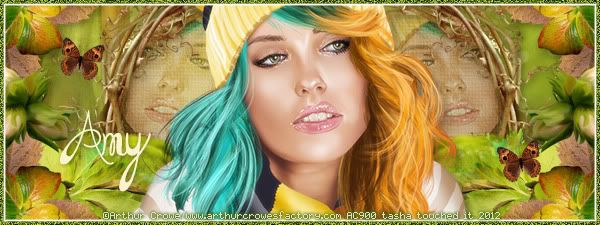
Supplies-
Kit- Forest Keepers, a gorgeous kit by Gimptastic Scraps here
Tube- Arthur Crowe which you can find here. You must purchase this tube and have a valid license to use it.
Font- The Daily Bread
Photoshop CS5
I'm on a Mac, so when I use Command you may need to use Ctrl
Here we go :)
Open a new canvas 600x225.
Place Paper 2 as the bottom layer and position how you like.
Create a corner border with some of the elements:
Place Grass above paper and position towards the left corner.
Place Branch 4 in bottom left corner.
Position Leaf 2 in the bottom left corner. Command+J to duplicate.
Edit>Transform>Flip Vertical. Place copy in upper left corner.
Place Leaf 3 centered above Leaf 2. Duplicate and flip as above.
Place Flower 4 in the middle of the border.
Close out the background paper layer by clicking the eye next to it.
Merge visible your other elements.
Add a drop shadow of choice. Duplicate border layer.
Edit>Transform>Flip Horizontal. Reposition to right corner.
Make background visible again.
Add Frame 5 above paper, position to the left. Duplicate and flip then place
copy to the right of canvas. Merge 2 frame layers together.
Place Paper 5 below frames. Using Magic Wand Tool (w), click inside each frame.
You may need to click around inbetween a few branches.
Select>Modify>Expand by 2. Select>Inverse. Hit Delete on paper layer. Deselect.
Add tube close ups below the frame layer. Right click and Create Clipping Mask to clip the
tubes to your paper. Change blend mode to Soft Light, Opacity 45%.
Duplicate. Change blend mode to Screen, Opacity 55%.
Add drop shadow of choice to frame layer.
Add main tube to center of canvas as top layer. Duplicate.
Filter>Blur>Gaussian blur 2px. Blend mode Screen, Opacity 60%.
Drop shadow bottom tube layer.
Create a new layer as the top layer.
Select>All. Select>Border 4px. Flood fill with color #64770b.
Duplicate layer. On top- Filter>Noise>Add Noise 40%, Uniform.
On bottom layer, add a 2px white stroke, outside.
Decorate with any remaining elements from the kit. I added a couple of butterflies.
Add artist copyright info and your license for the tube.
Add name and any additional text of choice.
Merge, save, enjoy :)
Thank you for trying my tut. If you have any questions or would like to show me your results, feel free to email me or find me on facebook!
Tuesday, November 6, 2012
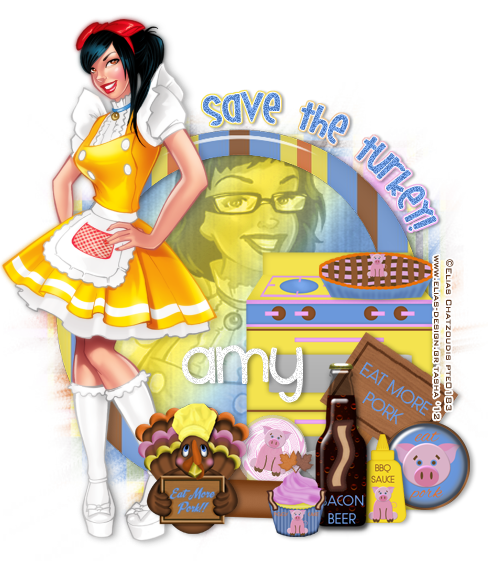
Supplies:
Kit- Turkey Day Protest by Gimptastic Scraps. Save the turkeys and visit here for where you can get this awesomely original kit!!
Tube- I'm using the work of Elias Chatzoudis. I purchased these tubes when he was at PTE, but you can now get them at his new store here. You must use a license with his work.
Mask-WSL_Mask 124 here
Font- Wish I Were Taller for the word art. Smiley Monster for the name.
Photoshop CS5
I'm on a Mac so when I use Command you may need to use Ctrl
Here we go :)
Open a new canvas 700x700
Place Frame 2 in center of canvas.
Use your magic wand tool and click inside frame
Select>Modify>Expand by 5px.
Add a new layer below the frame and add gradient or color of choice.
I chose a reflected gradient with colors from the kit. Deselect.
On gradient layer- Filter>Texture>Grain:

Add tube close up above gradient layer. Right-click and Create Clipping Mask.
Change blend mode to Luminosity, Opacity 40%.
Add tube to left side of frame.
Decorate tag with elements from the kit. From bottom to top I used:
Oven
Piggy Pie
Sign
Piggy Candy
Flair 1
Rolling Pin
BBQ Sauce
Bacon Beer
Cupcake
Turkey
With your Wish I Were Taller font, 30pt, type out Save the Turkey.
Click the Create Warped Text button at the top and use these settings:

Filter>Noise>Add Noise 15% Uniform.
Double click to bring up Layer Styles and add a 1px White Stroke, Outside.
Now Command+Click on the word art icon in the layer palette to create a selection around it.
Select>Modify>Expand 2px. Add a new layer below the word art.
Flood fill with color or gradient. Add a drop shadow to the background.
Now let's get our mask ready! Open your mask on a new canvas.
Add a new layer above it, and flood fill with color of choice,
or use a paper from kit .
Make sure your mask layer is activated and Command+A to Select All, Command+C to Copy.
Activate the paper layer, hit Q to turn on Quick Mask mode.
Command+V to paste the mask..it should now be tinted red.
Hit Q to turn off Quick Mask mode and there should now be marching ants on your canvas.
Hit the Add Layer Mask button at the bottom of the layer palette (rectangle with the circle in it)
Right click- convert to smart object
Right click- Rasterize layer
Drag completed mask to your tag canvas as the bottom layer
Resize it if needed.
With your Rectangular Marquee Tool (m), draw out a selection around the entire
tag, just slight smaller than the canvas. Image>Crop.
This will get rid of any stray pixels or drop shadows you don't see.
Image>Trim>Top Left Pixel Corner to remove the excess space.
Add your license and copyright info to the tag.
Add name and any other text of choice.
Merge, save as PNG and enjoy :)
Thank you for trying my tut! If you have any questions or would like to show me your results, feel free to email me (bananas_68@yahoo.com) or friend me on facebook (badge on left of blog)!!
Friday, October 26, 2012
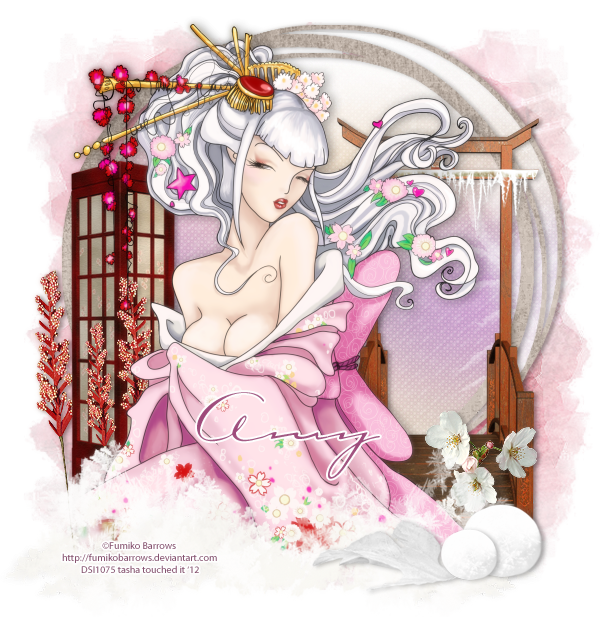
Supplies:
Kit- Kitsune by Gimptastic Scraps. Visit her blog here for this stunning kit.
Tube- I'm using the work of Fumiko Barrows. I purchased this tube from Dreamscape Imaging when they were open, but you can now find her work at The PSP Project here.
Mask of choice
Font of choice (I used Carpenter Script)
Photoshop CS5
I'm on a Mac, so when I use Command you may need to use Ctrl
Here we go :)
Open a new canvas 700x700
Place frame 4 in center of canvas.
Place paper 4 beneath the frame.
Using your magic wand tool (w) click inside frame..make sure to get in all the little
nooks and crannies :)
Select>Modify>Expand by 3 px. Select>Inverse.
Hit delete on paper layer, deselect.
Open layer styles and add drop shadow to frame.
Place tube above frame and drop shadow.
I used the eraser tool (Soft Round) and softened up the edges of the tube a bit.
Open Snow 1. Command+J to duplicate a few times. Flip and reposition around the tube so
it appears she is sitting in the snow.
Add elements from the kit to your tag:
*from bottom to top*
bridge
branch 4
lantern
copy branch 4 (resized)
Flower 4
Leaf 1
Snowball- duplicate, resize, reposition
Add drop shadows to elements.
Now let's get our mask ready! Open your mask on a new canvas.
Add a new layer above it, and flood fill with color of choice,
or use a paper from kit .
Make sure your mask layer is activated and Command+A to Select All, Command+C to Copy.
Activate the paper layer, hit Q to turn on Quick Mask mode.
Command+V to paste the mask..it should now be tinted red.
Hit Q to turn off Quick Mask mode and there should now be marching ants on your canvas.
Hit the Add Layer Mask button at the bottom of the layer palette (rectangle with the circle in it)
Right click- convert to smart object
Right click- Rasterize layer
Drag completed mask to your tag canvas as the bottom layer
Resize it if needed.
With your Rectangular Marquee Tool (m), draw out a selection around the entire
tag, just slight smaller than the canvas. Image>Crop.
This will get rid of any stray pixels or drop shadows you don't see.
Image>Trim>Top Left Pixel Corner to remove the excess space.
Add your license and copyright info to the tag.
Add name and any other text of choice.
Merge, save as PNG and enjoy :)
Thank you for trying my tut. If you have any questions or would like to show me your results, feel free to email me (bananas_68@yahoo.com) or post them on my Facebook :)
Saturday, October 13, 2012
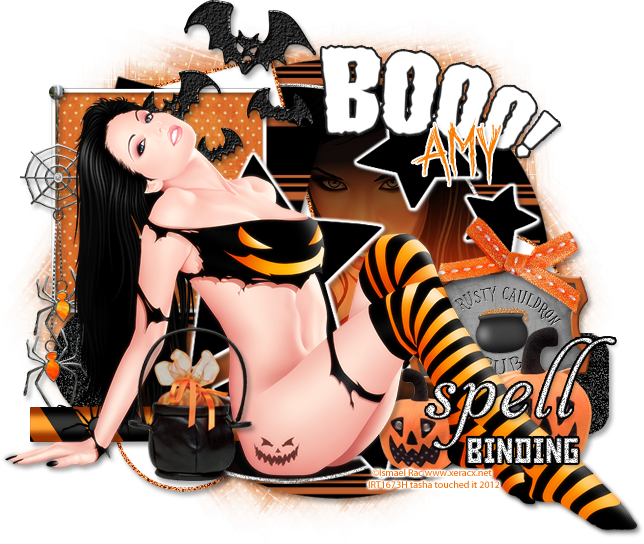
Supplies:
Kit- Tasha's Halloween from Amy here. Thanks Amy for making me this great kit!!!! You rock my socks lmao :o)
Tube- I'm using 2 tubes by Ismael Rac here. You need to purchase these and have a valid license to use them.
Template- kktempshalloween3-kk12 from Kandi Kissez here
Mask- WSL_Mask141 here (you can find bulk downloads on the right)
Font- October Crow
Photoshop CS5
I'm on a Mac, so when I use Command you may need to use Ctrl.
Here we go :)
Open up your template. Image>Duplicate. Close out original.
Delete the credits and green circle 1 layer.
We're going to work the template from bottom to top.
Add Paper 4 above the Large Black Circle layer.
Right-click paper layer>Create Clipping Mask. Your paper should now
fit nicely on the template layer :)
Small Black Circle-Filter>Noise>Add Noise 50%, Uniform, Monochromatic.
Purple Circle 2- Command+U to bring up Hue/Saturation. Increase Lightness to 100% or colorize to your choice of color. Hold Command and click the on the layer thumbnail to create a selection.
Select>Modify>Expand 3x. Add a new layer and fill with orange (#db7b31).
Command+F to repeat Add Noise from earlier.
Deselect and drag layer below Purple Circle 2.
Repeat these steps with Purple Circle 1 and Purple Square.
Black tab- Add Noise
Orange Circle- fill with Reflected Gradient. Add your tube close up and clip to the gradient layer.
Change tube Blend Mode to Soft Light. Expand and add a new Noise layer like earlier.
Green square- Paper 4
Black square- Paper 1
Kandi word art- Colorize
Add your tube of choice below the word art.
Add some elements from the kit to your tag. From bottom to top I used-
spider dangle
WA- colorize
bats
pub sign
bow
pumpkins
spider pole
treats
Add drop shadows to tube, elements and template layers.
Now let's get our mask ready! Open your mask on a new canvas.
Add a new layer above it, and flood fill with color of choice,
or use a paper from kit .
Make sure your mask layer is activated and Command+A to Select All, Command+C to Copy.
Activate the paper layer, hit Q to turn on Quick Mask mode.
Command+V to paste the mask..it should now be tinted red.
Hit Q to turn off Quick Mask mode and there should now be marching ants on your canvas.
Hit the Add Layer Mask button at the bottom of the layer palette (rectangle with the circle in it)
Right click- convert to smart object
Right click- Rasterize layer
Drag completed mask to your tag canvas as the bottom layer
Resize it if needed.
With your Rectangular Marquee Tool (m), draw out a selection around the entire
tag, just slight smaller than the canvas. Image>Crop.
This will get rid of any stray pixels or drop shadows you don't see.
Image>Trim>Top Left Pixel Corner to remove the excess space.
Add your license and copyright info to the tag.
Add name and any other text of choice.
Merge, save as PNG and enjoy :)
Thank you for trying my tut. If you have any questions or would like to show me your results, feel free to email me (bananas_68@yahoo.com) or post them on my Facebook :)
Wednesday, October 3, 2012
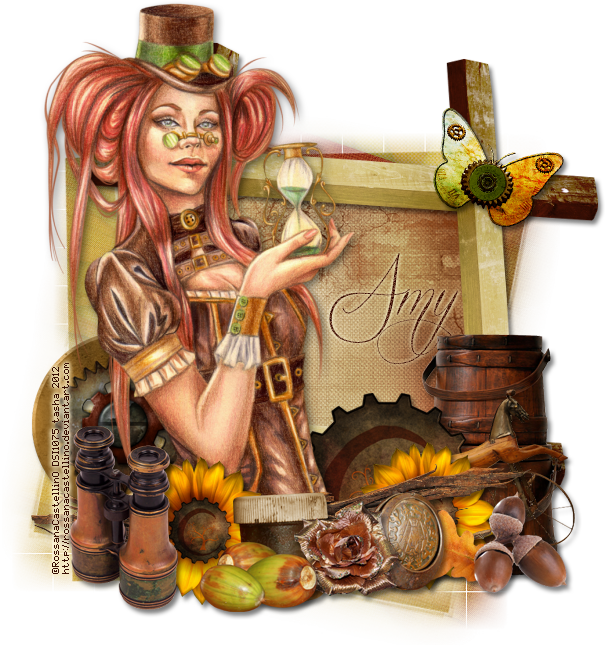
Supplies:
Kit- Falling for Steampunk by Gimptastic Scraps. Visit her blog here to get it!!
Tube- I'm using artwork by Rossana Castellino which I purchased at Dreamscape Imaging when they were open. You can now find her art at Creative Design Outlet here.
Mask- WSL_Mask121 here
Font- Quickier
Photoshop CS5
I'm on a Mac, so when I use Command, you may need to use Ctrl
Here we go :)
Open a new canvas 700x700
Place frame 2 in center of canvas.
Place paper of choice (I used paper 8) behind the frame.
Using the magic wand tool (w), click inside the frame.
Select>Modify>Expand 5px. Select>Inverse.
Hit Delete on the paper layer. Deselect.
Place tube to left of frame.
Double click to bring up Layer Styles and add a drop shadow to her.
Now decorate your tag with elements from the kit.
From bottom to top I used:
Buckets
Cog 3
Deco 2
Cog 1
Horse
Sunflower Cog (duplicate, reposition)
Wood
Jar
Acorns
Deco 3
Rose
Seeds
Binoculars
Butterfly
Add drop shadows to each element.
Now let's get our mask ready! Open your mask on a new canvas.
Add a new layer above it, and flood fill with color of choice,
or use a paper from kit .
Make sure your mask layer is activated and Command+A to Select All, Command+C to Copy.
Activate the paper layer, hit Q to turn on Quick Mask mode.
Command+V to paste the mask..it should now be tinted red.
Hit Q to turn off Quick Mask mode and there should now be marching ants on your canvas.
Hit the Add Layer Mask button at the bottom of the layer palette (rectangle with the circle in it)
Right click- convert to smart object
Right click- Rasterize layer
Drag completed mask to your tag canvas as the bottom layer
Resize it if needed.
With your Rectangular Marquee Tool (m), draw out a selection around the entire
tag, just slight smaller than the canvas. Image>Crop.
This will get rid of any stray pixels or drop shadows you don't see.
Image>Trim>Top Left Pixel Corner to remove the excess space.
Add your license and copyright info to the tag.
Add name and any other text of choice.
Merge, save as PNG and enjoy :)
Thank you for trying my tut. If you have any questions or would like to show me your results, feel free to email me (bananas_68@yahoo.com) or post them on my Facebook :)
Subscribe to:
Posts
(Atom)
My Blinkies
I Get Creative For